NOTE: If your computer is on a
stand, remove the stand before you open the computer cover.
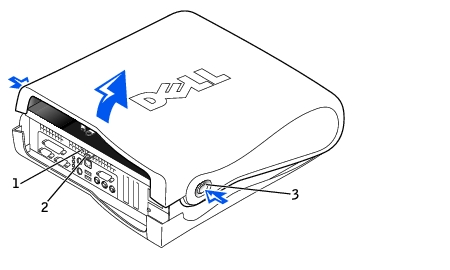
Small Form-Factor Computer
1
Security cable slot
2
Padlock ring
3
Release buttons (one on each side)
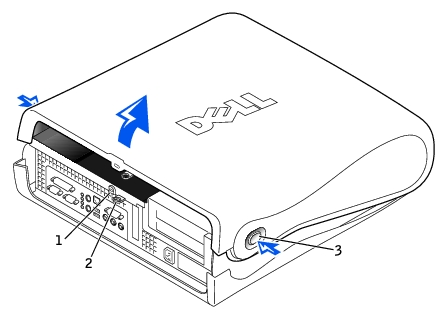
Small Desktop Computer
1
Security cable slot
2
Padlock ring
3
Release buttons (one on each side)
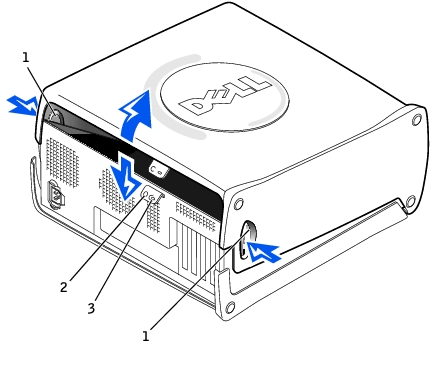
Small Mini-Tower Computer
1
Release buttons (one on each side)
2
Padlock ring
3
Security cable slot
Remove the padlock from the padlock ring, if present.
NOTICE: Do not open the cover if
the computer is on the edge of a desk or table. Doing so may cause the computer to tip
over and fall. Make sure that the computer is situated so that there is at least 12 inches
of desk- or table-top for the cover to rest on.
Press in on the two securing buttons until the cover is
free to swing up.
On the small mini-tower computer, press the release button on the right side
of the computer with one hand while pulling up on the top of the cover with the other
hand. Then, press the release button on the left side of the computer with one hand while
pulling up on the top of the cover with the other hand. Hold the bottom of the computer
with one hand, and then pull open the cover with the other hand.
Check all cable connections, especially those that might
have come loose during your work. Fold cables out of the way so that they do not catch on
the computer cover. Make sure cables are not routed over the drive cage—they will
prevent the cover from closing properly.
Check to see that no tools or extra parts (including
screws) are left inside the computer.
Close the computer cover by pivoting the cover down
toward the back of the computer and into position. Press on the right side of the cover
until it closes securely. Then, press on the left side of the cover until it closes
securely.
Replace the padlock, if required.
NOTE: After you open and close
the cover, the chassis intrusion detector causes the following message to be displayed at
the next computer start-up: